Mail
Inbox Categories
To enable inbox Categories:
- In the top right, click
 and then Settings.
- Click the Inbox tab.
- In the "Inbox type" section, select Default. Note: To hide all tabs, select another inbox type.
- In the "Categories" section, check the boxes of tabs you want to show. Note: You can't make new tabs; you can only show or hide existing ones.
- Scroll to the bottom, then click Save Changes.

Gmail will automatically sort your emails under these tabs. It you don't like where some emails go, you can tell it where you want certain emails to go by dragging and dropping the email onto a tab. It will use machine learning to sort future emails accordingly.
Mute Conversations
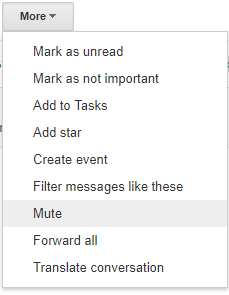
If you are CCd on a long email thread to which many people are replying but has nothing to do with you, just use the Mute button and you will not get further notifications for that email. Open the email click More > Mute.
Filters
Creating filters will automate your inbox. These are very powerful for automatically sorting, applying labels, deleting, forwarding, etc.
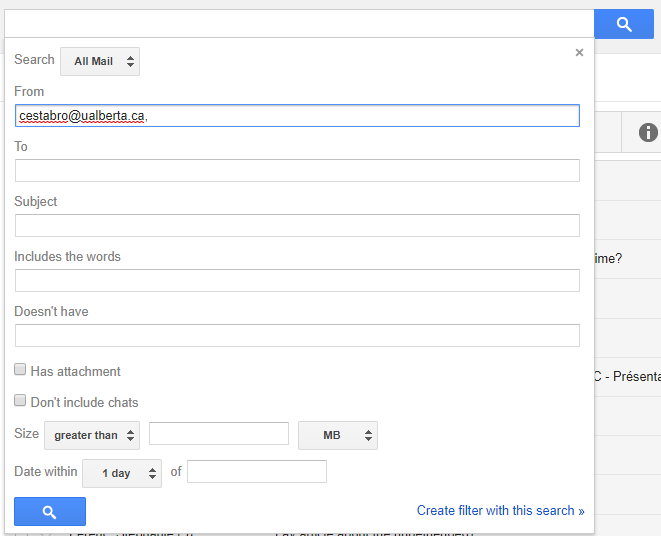
- Create a search from the search bar at the top
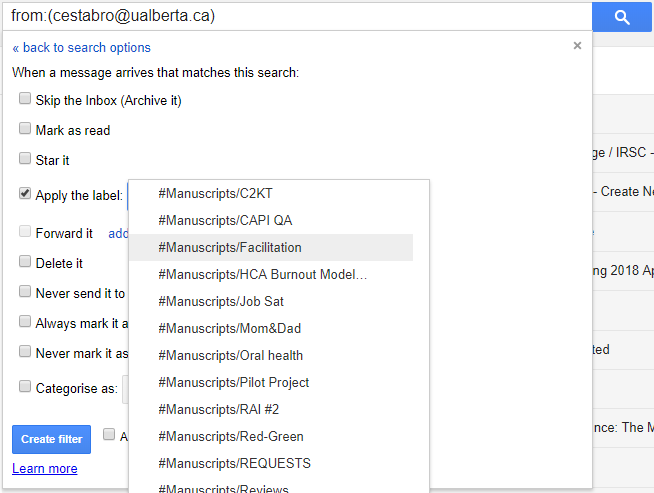
- Click Create filter with this search
- Create the rule you want the filter to enforce
- Click Create filter
Custom addresses
You can add a string of characters after your CCID to create a custom email address. For example from ftoth@ualberta.ca you can create ftoth+customtext@ualberta.ca.
This can be useful for signing up for accounts. E.g., ftoth+dropbox@ualberta.ca , then you will always know who sold your address if you get spam email. Simply send that address to Spam or delete it with filters.
For example you can set up a filter so that emails from ftoth+todo@ualberta.ca will automatically be assigned the label ToDo. Then to add tasks to this ToDo list simply send your self emails to this address.
Calendar
Add a co-workers calendar
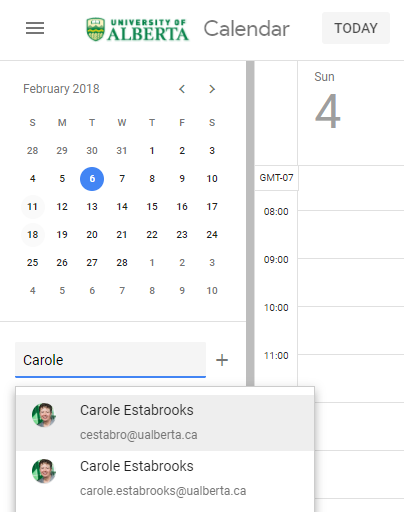
Adding a co-workers calendar will let you see when they are busy. Add a calendar by typing the co-workers name in the search box in the left pane of the calendar.
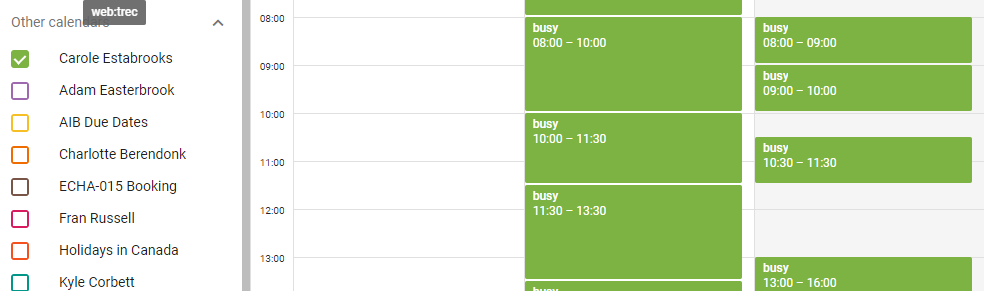
Once their calendar added you can see when they have events scheduled by checking the checkbox next to their name under Other Calendars.
Finding A Time
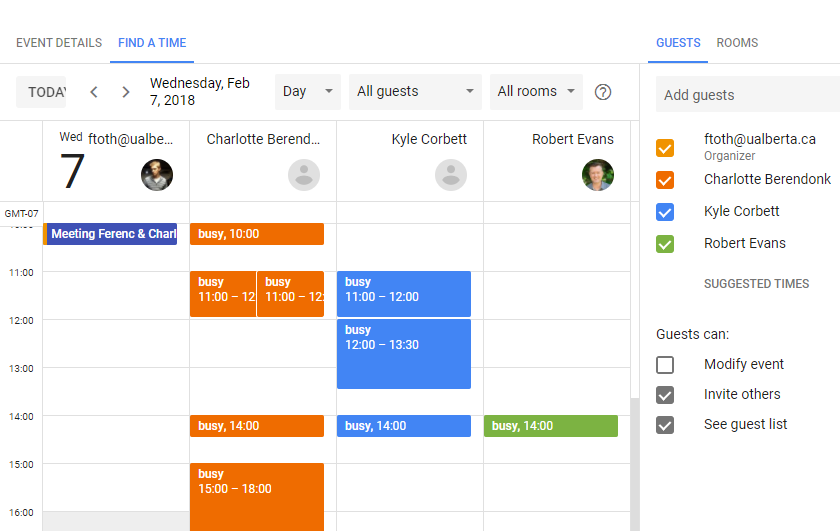
This is a handy feature of the calendar that will allow you to find time when you and co-workers have free time for a meeting.
When adding a calendar event click on Find a Time then start adding on the pane on the right. Their calendars will be displayed and you will be able to see when all parties are available.